_Jan 2016 (RGB with transparent background).png)
How to Unlock and Reset MIMS password
All MIMS users can unlock and reset their MIMS password by answering security questions correctly.
Steps to Unlock or Reset MIMS Password.
STEP 1
Visit this URL http://go.gov.sg/mimsportal (opens in new tab), then click on "Forgot Password?" link.
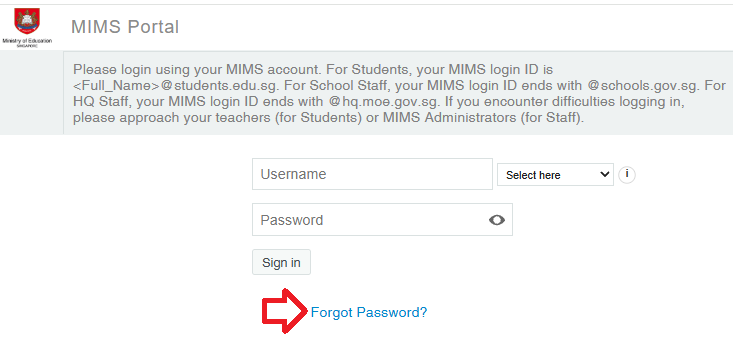
Click on "Forgot Password?" link to proceed.
STEP 2
Enter your MIMS ID (full student ICON email address), and click “Search”
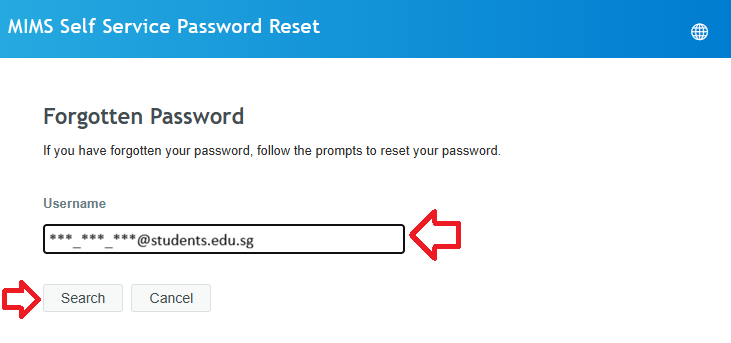
Enter MIMS ID and click "Search" to continue.
STEP 3
Answer the security questions correctly and click "Check Answers".
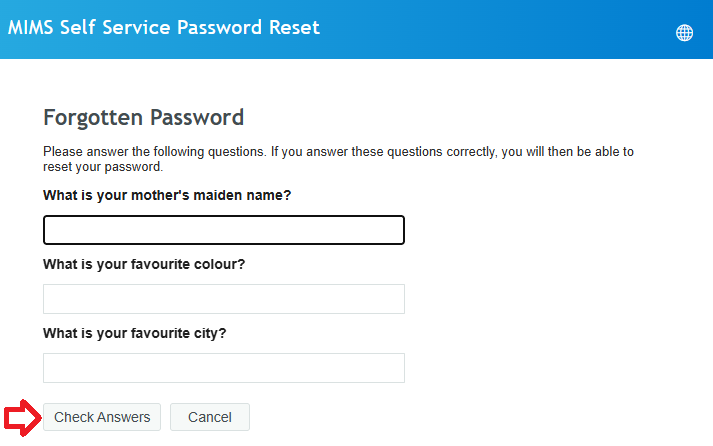
Answer security questions correctly.
STEP 4
If your MIMS account is locked (either too many failed login attempts or password has expired), you will be prompted the options to "Unlock Password" or "Change Password".
If your account is not locked, then you will be asked to change password (skip to next step).
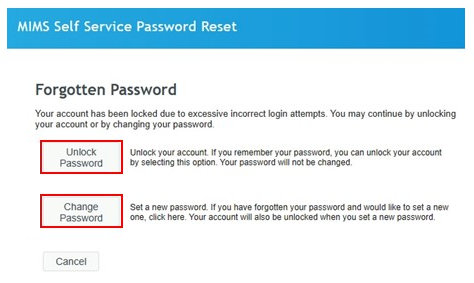
Select "Unlock Password" or "Reset Password"
STEP 5
To change password, enter a "New Password" and "Confirm Password", then click "Change Password" when done. Please note the password requirements.
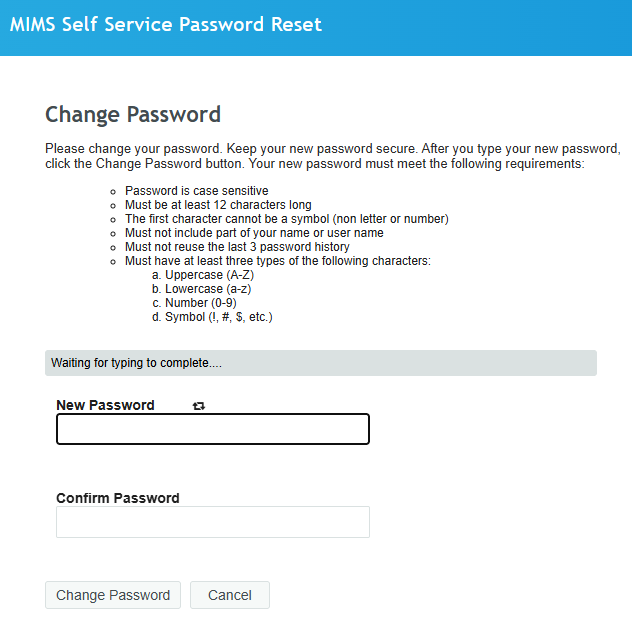
Enter new password and click "Change Password"
Not Sure If You Have Setup Your Security Questions?
If you encounter the following screen after STEP 2, then you have not setup your security questions. Refer to the section on "Need More Help?"
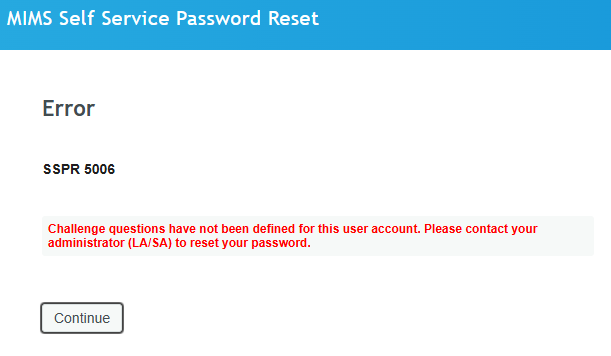
This screen means your have not setup your security questions.
Need More Help?
If you are encountering issues not covered above, please take a screenshot of the error message(s) and show it to the ICT staff at the Computer Workroom in Block A level 1 (A1-18). They will assist you.